Sign in
 Tweet
Tweet Share
Share Recent comments
thanks for the tricks! i kinda planning to make cursor after my digestive exam, cool info 🤩
Perfectly centered cursor hotspots
Published by Vlasta on May 17th.
Here is a useful trick for anyone creating multi-resolution cursors from a large image or animation in RealWorld Cursor Editor. This mainly applies to cursors where the hotspot is supposed to be exactly in the center horizontally, vertically, or both.
The problem is that cursor sizes are usually even numbers like 32×32, 48×48, or 64×64 pixels. The exact center of an even-sized image falls between pixels, not on a specific pixel. After resizing a large source image to several cursor sizes, the intended hotspot often ends up slightly off-center in some resolutions.
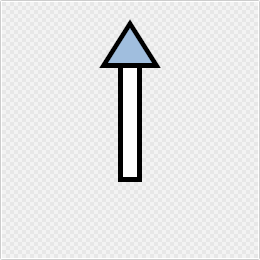
This may not matter much for a normal arrow cursor, but it becomes noticeable for roles like precision select, text select, or various resize cursors where alignment is important.
The trick is simple: when converting the source image or animation into a cursor, use odd sizes instead of the final desired sizes. For example: use 33, 49, 65 instead of 32, 48, 64.
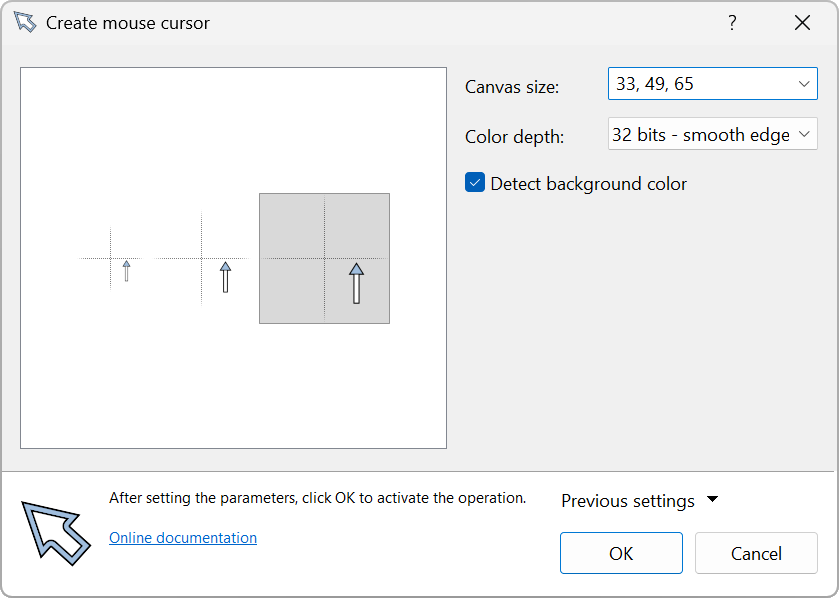
If the original (vector or raster) image is properly centered, this ensures that the center lands exactly on a real pixel - specifically the center pixel at positions like (16,16), (24,24), or (32,32).
After creating the cursor with these odd sizes, use: Cursor → Change size from the main menu. Then enter the actual desired sizes (32, 48, 64) and select Crop as the resize method.
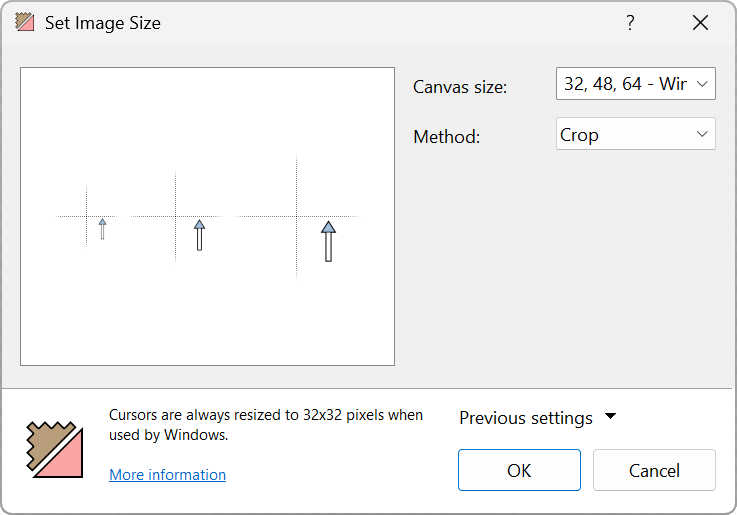
Then you can use the Hot-spot tool to set the actual hot spot. The result is a cursor with properly aligned hotspots in all sizes, without the half-pixel offset problem.
This also works for animated cursors and is especially useful when converting large PNG, SVG, APNG, or GIF sources into multi-resolution Windows cursors.