
 Sign in
 |
Picture Resizer advanced configurationBack to main PhotoResizer page. |
Resize photos in all subfolders
To scan for images recursively, append the letter R to the application name. For example, rename it to PhotoResize400R.exe.
Command line options
Photo Resizer accepts command line parameters that override settings from tool's filename. It is also possible to cutomize the application standard output and to skip the tool's final message.
Important:When using complex options that contain space or charcters like :, <, >, /, \, you must enclose them in double quotes. For example "-if X<Y"
Overriding options
- -^WxH - specify exact output size (same as PhotoResizeWxH.exe).
- -^X - specify maximum size (same as PhotoResizeX.exe).
- -_X - specify minimum size (same as PhotoResize_X.exe).
- -hX - specify height (same as PhotoResizeHX.exe).
- -wX - specify width (same as PhotoResizeWX.exe).
- -pX - specify percentage of original (same as PhotoResizePX.exe).
- -dX - specify output DPI (same as PhotoResizeDX.exe).
- -kX - specify output file size in kB (same as PhotoResizeKX.exe). The conversion may be significantly slower, because multiple tries my be required to create file that fits the required size.
- -fWxH - specify maximum size of a picture frame (same as PhotoResizeFWxH.exe).
- -gWxH - retarget image to specified size (same as PhotoResizeGWxH.exe).
- -aWxH - crop + resize to WxH pixels. The central part of the image is kept (same as PhotoResizeAWxH.exe).
- -WxHxC - extend canvas + resize to WxH pixels. C is canvas color in hexadecimal RRGGBB web format.
- -r - invert the "recursive folder scanning" flag.
- -i - invert the "in-place resizing" flag.
- -m - invert the "keep metadata (EXIF)" flag.
- -qX - specify compression quality (1-100). Default quality is 60. Filename flag L set quality to 30, while H set quality to 90.
- -s - invert the "skip files that are already smaller than the specified size" flag.
- -n - invert the "sharpen the resized image" flag.
- -t - invert the "independent size and DPI" flag.
- -u - invert the "update only (skip files already exising in the destination folder)" flag.
- -x11, -x12, -x21, -x22 - set chroma subsampling level (default is -x22).
- -e - preserve file modification date (in addition to file creation date, which is preserved always).
- -XofN - only process a fraction of all files (can be used to split large jobs). Concrete numbers must be used in place of X and N. X must be in range 1..N. For example: -1of2, -2of2.
- -zXXX - XXX is a wildcard filter (*.* by default) for file processing. * means any number of characters, ? represents single character. For example *blue*.* would only process files with the word blue in their file names.
- -a+, -a-, -a* - enable, disable or preserve (use it if the original image used it) arithmetic compression in JPG files.
- -v - automatically rotate picture by EXIF orientation tag.
- -if X<Y, -if Y>=X - only process portrait images (skip landscapes).
- -if Y<X, -if X>=Y - only process landscape images (skip portraits).
The settings apply to all files specified after them. Example:
PhotoResize.exe -w200 C:\img1.jpg -w300 C:\img1.jpg C:\img2.jpg
This command resizes img1.jpg to 200 pixels width, then resizes img1.jpg and img2.jpg to 300 pixels width.
Customizing destination folder and file name
Customize output path and name using the -c switch. If used without more options, it redirects output to current folder (to be compatible with previous versions).
You can use any characters and the following variables:
- <ROOT> - path to the source folder of the specified source file.
- <PATH> - path from the ROOT to currently processed file. This variable is empty unless the tool is used to resize files in subfolders of the given folder. In that case, it holds the relative path to the subfolder.
- <NAME> - source filename without extension.
- <SIZE> - encoded destination size (compatible with previous versions).
- <INDEX> - batch counter starting at 1.
Example: To put files resized files into folder C:\Resized Images, use "-cC:\Resized Images\<PATH><NAME>.jpg" (the quates are needed, because, there is a space in the path.
Customizing tool's standard output
Using -o parameter has two effects. It eliminates the need to press ENTER when the tool has finished and it allows to customize the report producted by the tool.
Examples
PhotoResize400.exe -o "C:\img1.jpg"
Silently resize img1.jpg. Nothing is sent to standard output and the application exits without waiting
for user interaction.
PhotoResize400.exe "-o<SRCNAME><EN>" "C:\MyImgs"
Resizes all images in folder MyImgs and writes original filenames to standard output.
An end-of-line character is placed after each filename.
PhotoResize400.exe "-o<a href=<QT><SRCNAME><QT>> <img src=<QT><DSTNAME><QT> /> </a><EN>" "C:\MyImgs" >C:\pagefragment.html
Resizes all images in folder MyImgs and writes a simple html code with thumbnails linking to original images to file pagefragment.html.
- <SRCNAME> - source filename.
- <SRCPATH> - source filename with full path.
- <DSTNAME> - destination filename.
- <DSTPATH> - destination filename with full path.
- <EN> - new line.
- <QT> - quote ".
Changing the output folder
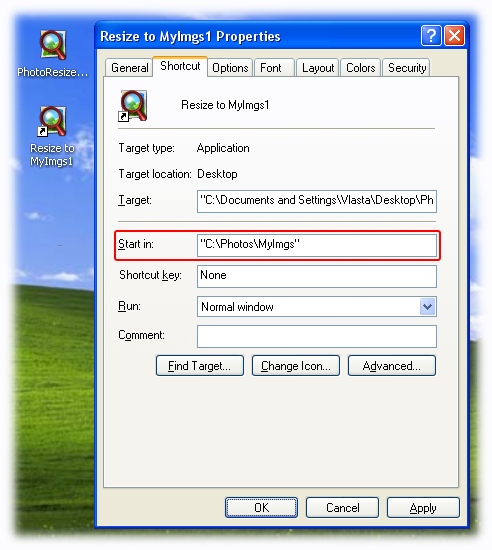
By default, Picture Resizer creates the images in the folder, where the original images were found. Custom output folder can be specified using the -c flag, but that requires use of a command line. If you want to resize files via drag-and-drop, you may set up a shortcut. If the letter C is used at the end of the filename (PhotoResize400C.exe) and current folder is specified in the shortcut, the files are put into that folder.
Selecting output folder using shortcut
Configure (rename) PhotoResizer, then create a shortcut to it. A shortcut can is created by right-clicking and selecting 'Create Shortcut' command.
Shortcut specifies the current folder for the application. This value defaults to the folder, where the application resides. You may change it in the shortcut's properties windows. If you are changing the folder, make sure the new value is valid (folder already exists).
Drag and drop files on the shortcut. Images will be sent to the selected folder.
Note
Multiple options (C, R, L, H, I, M, S, N, T) can be used simultaneously by renaming the application to for example PhotoResize400CR.exe
Download Picture Resizer from its main page.
 reddit
 Facebook share